
Step 1
Open the assignment you need help completing. In this example a Work From Heights Permit is open with the competent person's details already filled in. The action buttons RE-ASSIGN, REVIEW REQUIRED, and ADD COLLABORATOR(S) sit at the top left of the document.
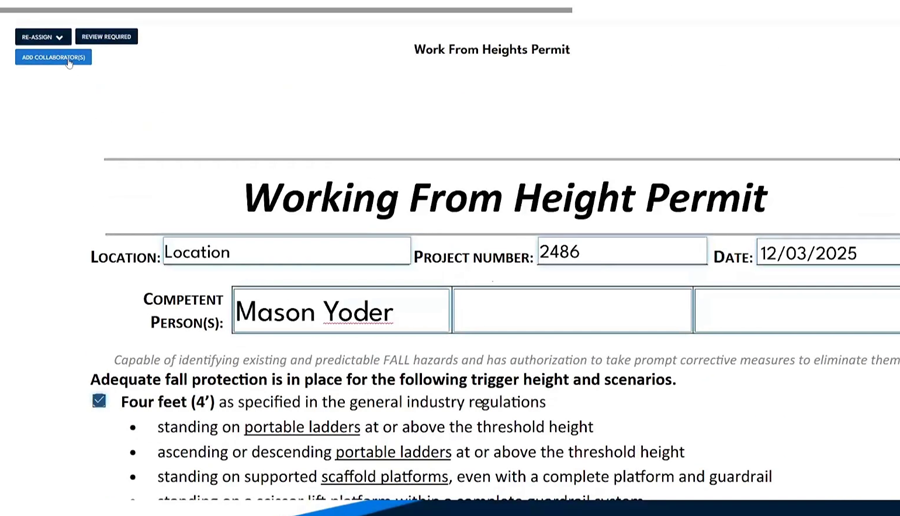
The open permit, with the ADD COLLABORATOR(S) button at the top left.
Step 2
Select ADD COLLABORATOR(S), then choose the coworker who also needs to work on the job. The Add Collaborator(s) window lists the other users; search or scroll to the person, select them, and choose Add Collaborator(s).
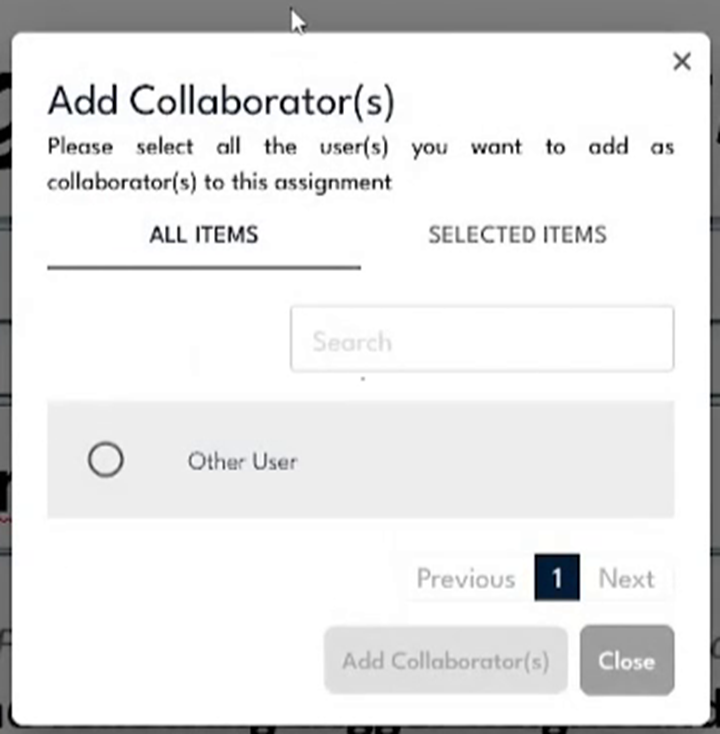
The Add Collaborator(s) window: pick the user, then select Add Collaborator(s).
Step 3
The platform confirms the collaborator was added. The assignment now appears in that coworker's queue as well, and the two of you share one synchronized copy of the form.
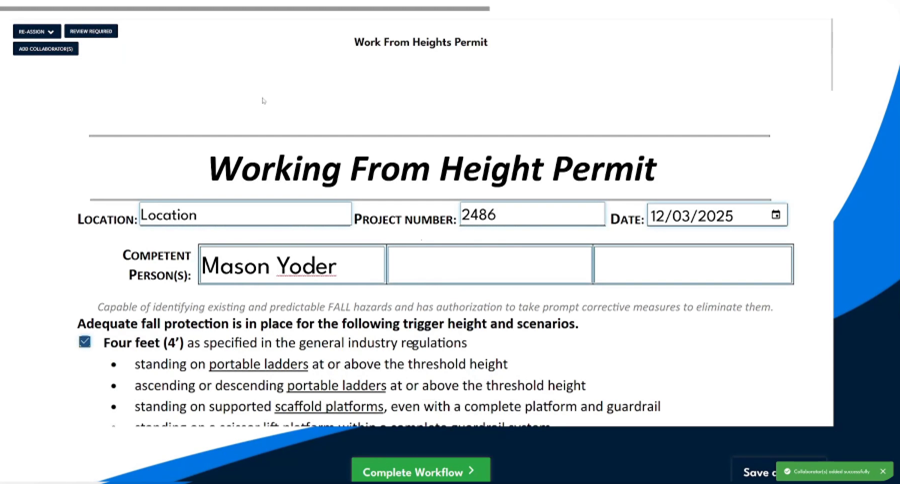
The "Collaborator(s) added successfully" confirmation.
Step 4
Your coworker opens the assignment from their own Assignments list, where they are shown as a Collaborator on the Work From Heights Permit. Everything you already entered is visible to them and updates in real time.

The coworker's Assignments list shows them as a Collaborator on the shared permit.
Step 5
Both of you can fill out the form together. Here the coworker only needs to add their signature to the sign-off grid, then selects Save and Exit. The permit now carries both signatures.
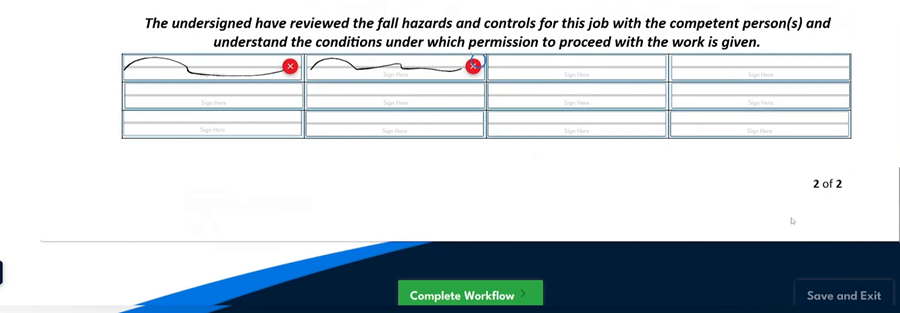
Both signatures captured in the sign-off grid; the coworker selects Save and Exit.