
Step 1
Open the Notifications screen and select Create New.
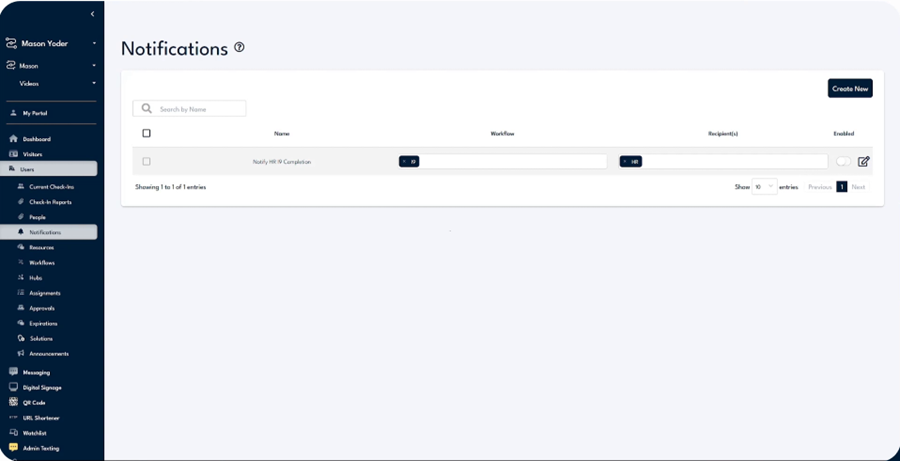
Notifications sits under Users in the left navigation; select Create New in the top right.
Step 2
Enter a name in the Notification Name field, then choose the workflow this notification is based on.
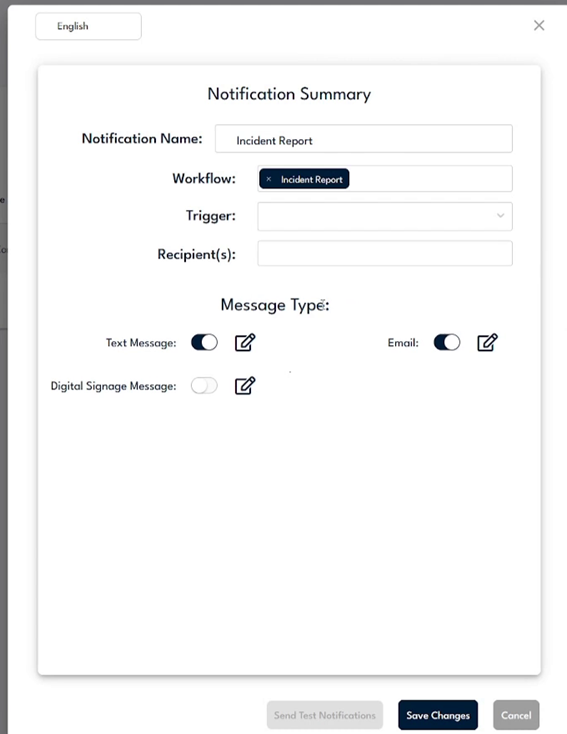
Name it Incident Report and select the Incident Report workflow from the Workflow field.
Step 3
Set the Trigger to Resource Forwarding.
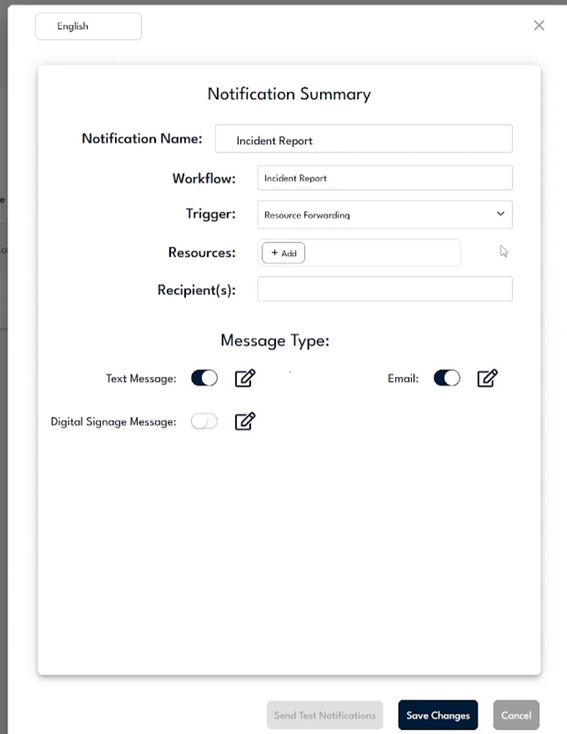
With Resource Forwarding selected, a new Resources field appears so you can choose what to forward.
Step 4
In the Resources field, select Add and pick the resource you want to forward.
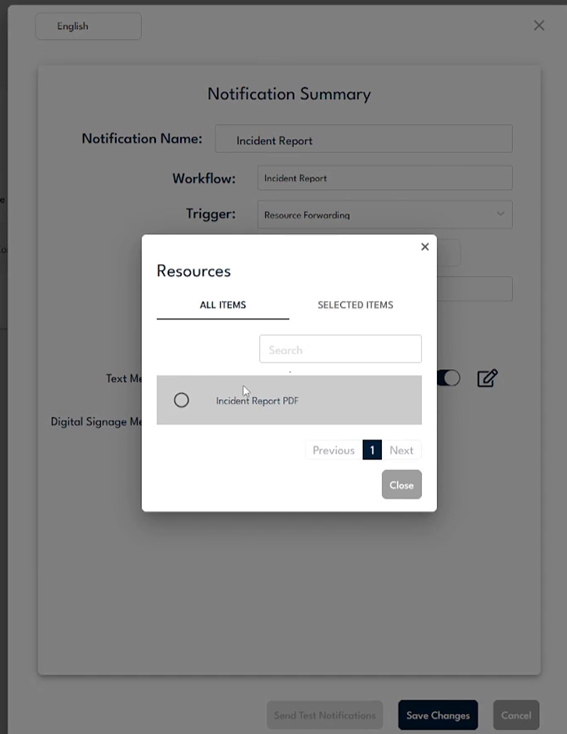
Pick the resource from the list drawn from your workflow; here the Incident Report PDF is selected.
Step 5
Add the people who should receive the form in the Recipient(s) field, then choose how it is delivered under Message Type.
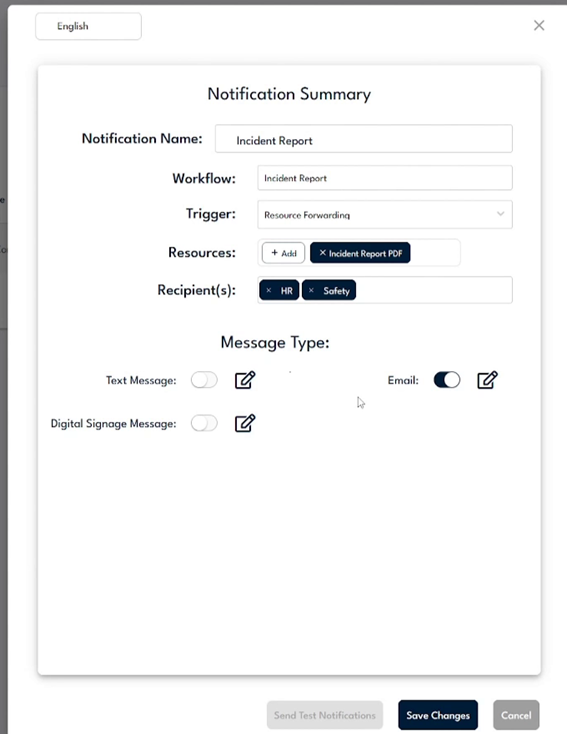
HR and Safety are added as recipients, and Email is turned on as the delivery method.
Step 6
Select Save Changes to finish, and the new notification appears in your list.
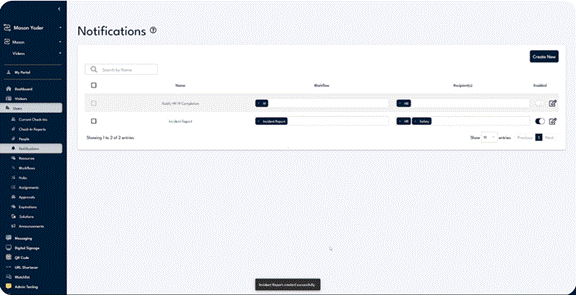
The Incident Report created successfully message confirms the active notification now in your list.
Step 7
Confirm the recipient receives a viewable, downloadable copy of the completed form.
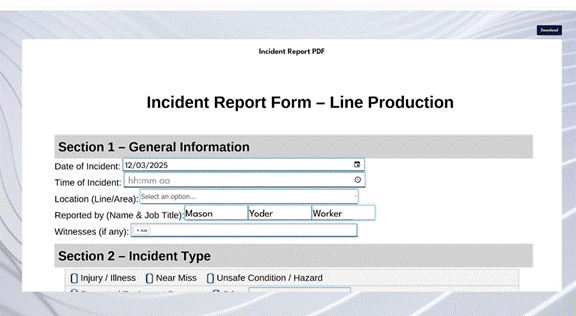
The recipient opens the completed Incident Report PDF and can save it with Download in the top right.