
Step 1
Start from the resource. Every resource and workflow keeps a History of each time it was completed. From the left navigation go to Resources, find the item you want, and look for the History action on its row, next to View, Link, and Edit.

Every resource has its own History action, shown here on the Resources list.
Step 2
Open the resource's history. Click the History icon on the resource's row. The History window lists every submission with its Time Taken, User Name, and Contributors, and shows the answers inline under View Answers. Each row also has actions to view, duplicate, or delete that submission.
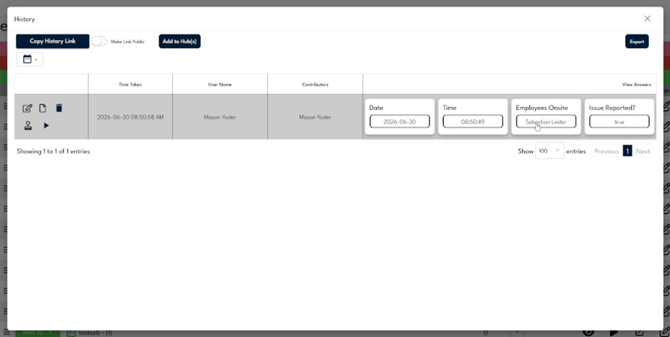
A resource History lists every submission with Time Taken, User Name, Contributors, and View Answers.
Step 3
Share or export the history. Use Copy History Link to copy a shareable link, the Make Link Public toggle to control who can open it, Add to Hub(s) to place it on a kiosk, or Export to download the records. Use the date control to limit the history to a specific range.

Copy History Link, Make Link Public, Add to Hub(s), and Export sit at the top of the History window.
Step 4
View a workflow's history the same way. Open the Workflows page and click the History icon on a workflow. A workflow History adds check-in columns such as Hubs, Workflow, Mobile Number, Additional Information, Host Name, Checked In, and Checked Out, plus an Export Format dropdown with an Export button, an Include Collect Info toggle, and a date filter.
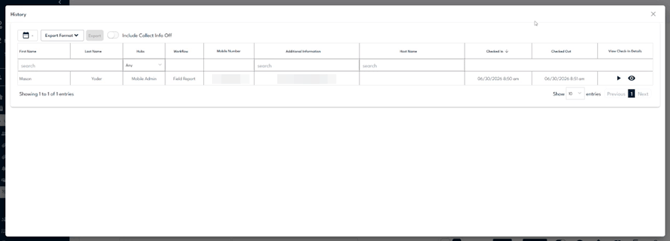
A workflow History adds check-in columns and an Export Format option with Export.
Step 5
Open one submission in full. In the workflow history, click View Check-In Details (the eye icon) on a row. The details window opens with tabs for Details, Media, Forms, User Agreements, Identification Details, and Uploads, so you can review everything captured during that visit or workflow run.
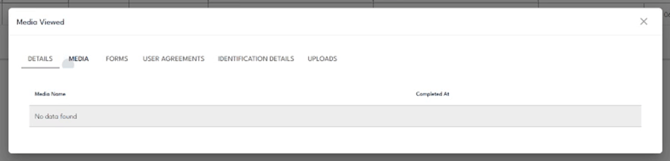
View Check-In Details opens tabs for Details, Media, Forms, User Agreements, Identification Details, and Uploads.