
Step 1
From the left navigation go to Users, then on the person's row click the History icon. The Profile window opens and shows everything that person has completed, grouped into color-coded sections such as Forms, Tests, Acknowledgments & Agreements, ADoH, and Host.
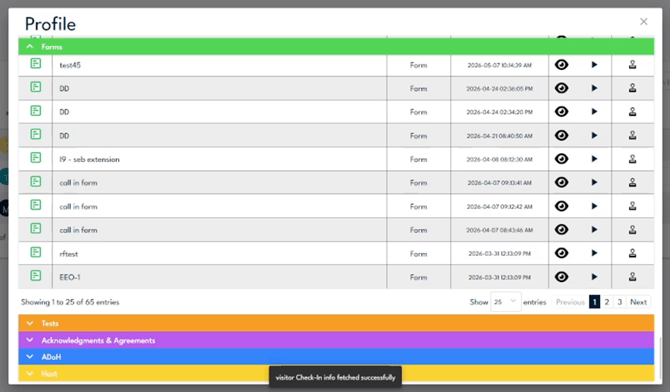
A user's Profile history, grouped into Forms, Tests, Acknowledgments & Agreements, ADoH, and Host.
Step 2
Read the user's history. Expand a section to list each completed item with its name, type, and date. Use the Show entries control and the pager to move through long lists, for example when one section holds dozens of entries.

Color-coded sections and the entry count let you page through everything one person has completed.
Step 3
Open an individual submission. On any entry, click the view (eye) icon to open the completed item exactly as the person filled it out, or the play icon to preview it. The opened view includes a Print option so you can save or print a copy.