
Step 1
Go to Workflows, find the workflow you want to send, and select the Assign option for it.

Find the Daily Forklift Inspection row and click its Assign button on the right.
Step 2
Decide whether this is a standard assignment or a Triggered one, and turn the Triggered toggle on or off to match.
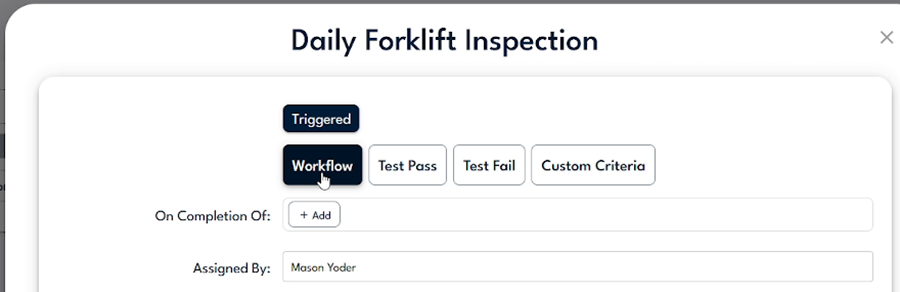
With Triggered on, you choose what fires it: a Workflow completion, a Test Pass, a Test Fail, or Custom Criteria. Leave it off for a daily assignment.
Step 3
Under Assigned To, choose Individual Staff to type in specific people, or Group to select a group, then pick whether All Group Members Perform or Any Group Members Perform.

Group is selected here with the Forklift Operators chip; the All and Any Group Members Perform toggles sit just below.
Step 4
Set Assign to Now to send it out right away, or Later to schedule it for a specific date and time.

Assign is set to Now; Assigned For lets you send on behalf of a group or individual staff.
Step 5
Choose a Due Date type: Fixed for a set calendar date, or Relative for a due date measured from when the assignment is served, such as one day, one hour, or one month after.

Relative is selected with a value of one Day, and All Day is on so it can be submitted any time that day.
Step 6
Turn on Recurring, open its settings, and set how often the assignment repeats and whether it has an end date.
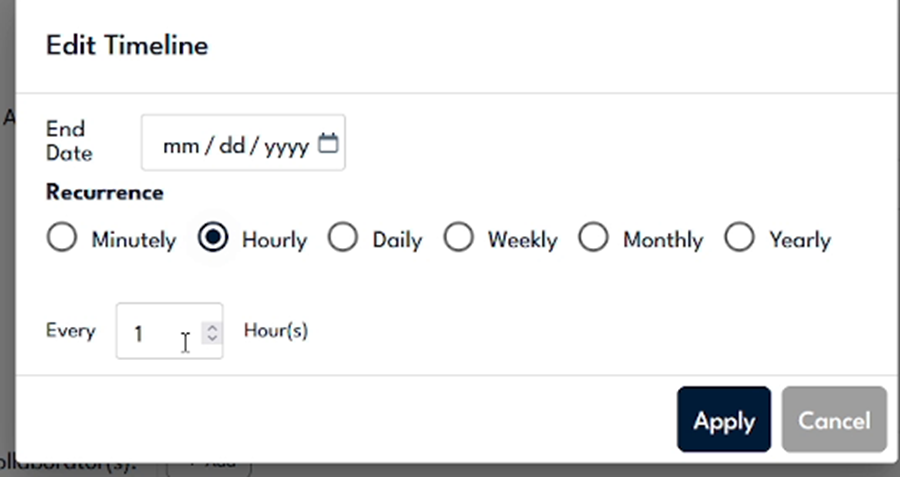
The Edit Timeline window sets the recurrence (here Hourly, every one hour) and an optional End Date.
Step 7
Add any Reminders you want, then choose the delivery methods by turning Email and Text on or off.

Use Add Date for reminders, toggle Email and Text for delivery, and add Collaborators here if needed.
Step 8
Edit the notification content. Use the Add Variables dropdown to drop in tokens that fill in for each recipient, such as %user-name%, %workflow-link%, %cellnum%, %due-date%, %hub-name%, %org-name%, %location-name%, and %assigned-by%. Always keep %workflow-link% so recipients can open the assignment directly, then click Save.