
Step 1
Open Messaging from the left menu, then use the Scheduled, Sent, and Templates tabs to review existing messages. The Templates tab lists saved messages and shows an Emergency Template toggle for each one.
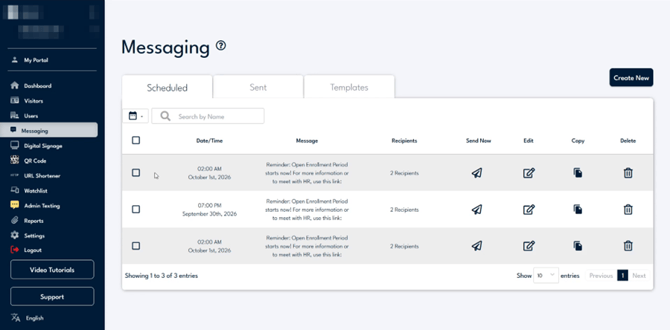
The Scheduled tab lists upcoming messages with their date, recipients, and quick actions.
Step 2
Click Create New, then set Type to Send Now, Schedule Send, or Template. If you choose Template, enter a Template Name so you can reuse it later. For a quick Send Now, naming is not required. Turn on Emergency Template only for urgent alerts such as a fire or evacuation, since an emergency message reaches recipients even if they have blocked or opted out of that contact method.
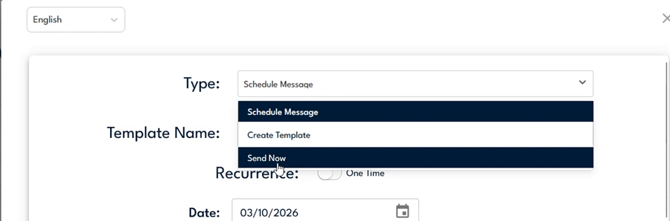
Open the Type dropdown to pick Send Now, Schedule Message, or Create Template.
Step 3
Under Message Type, turn on Text Message, Email, or both, then enter a Title / Subject when sending an email. The Title / Subject becomes the email subject line. Type your message in the editor below and use Insert Placeholder to add personalized fields.

Toggle Text Message and Email on, then type the Title / Subject above the editor.
Step 4
In the Recipients section, choose Groups or User to decide who receives the message. Use Groups to message everyone in a group at once, or User to pick specific people. You can add as many recipients as you need.
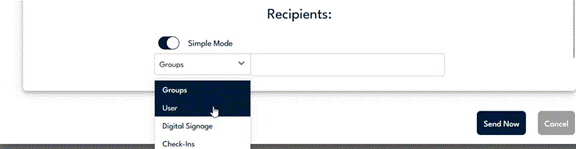
Use the recipient selector to switch between Groups and User.
Step 5
Confirm your selected recipients, then click Send Now. Each person you add appears in the recipients list so you can review it before sending.
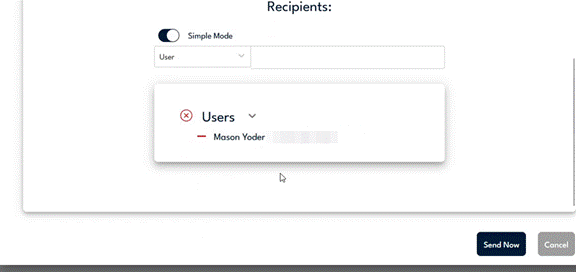
Review each recipient in the list, then click Send Now to deliver.
Step 6
Open the Sent tab to see each message and its delivery Status. Status shows results such as Delivered or Delivered (Partial), along with the recipient count and a Retry option.
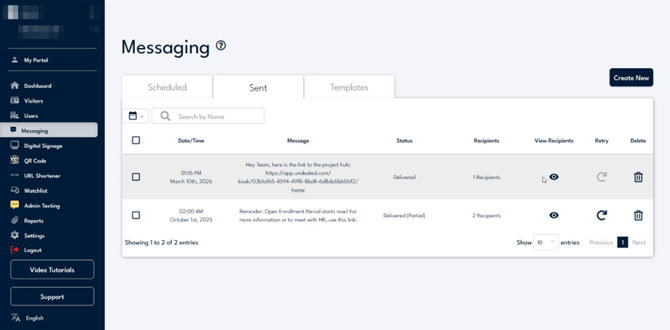
The Status column shows Delivered or Delivered (Partial) with a recipient count and Retry option.
Step 7
Click the View Recipients icon to see who the message was delivered to and the status for each contact method. The SMS, Email, Teams, and Slack tabs show per-recipient delivery, so you can confirm a text or email reached each person.
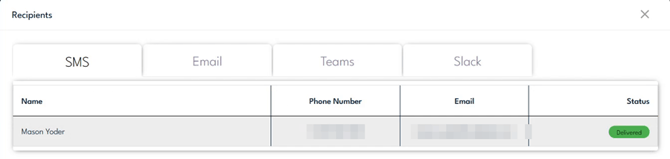
Switch between the SMS, Email, Teams, and Slack tabs to see per-recipient delivery status.