
Step 1
Open the User Report. From the left navigation go to Users, open People, then click the User Report card, labeled Filter All Available Users. This opens the Filtered User(s) page, where every report is built and viewed.
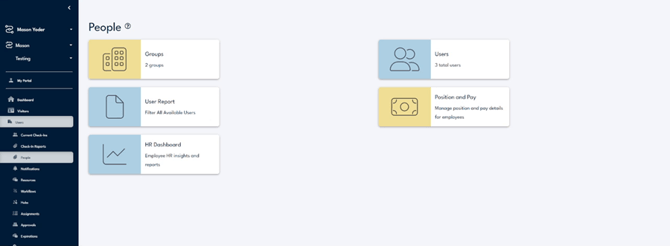
The People page under Users, where the User Report card opens the reporting tool.
Step 2
Click Apply Filter in the top right to open the filter builder. The builder lists collapsible categories you can report on, including profile sections such as Payroll, Driving Licence, I9, Personnel Files, and Position Pay, plus Test, Form & Acknowledgement for anything users have submitted.
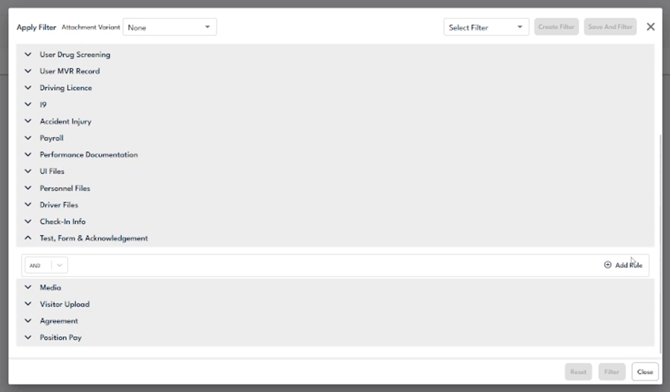
The Apply Filter builder, with categories listed and Save And Filter at the top.
Step 3
Expand the category you want and click Add Rule. To report on a submitted form, expand Test, Form & Acknowledgement, then use Select Action to choose the item. A rule row also has an AND or OR selector so you can stack more conditions later.
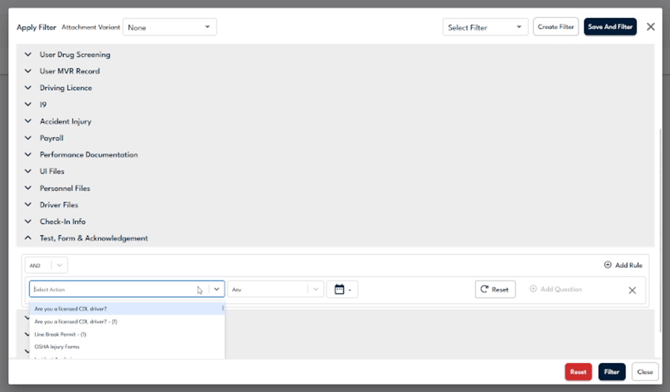
Use Select Action to pick the form, test, or acknowledgment you want to report on.
Step 4
In the rule, confirm the item you selected, such as the Field Report form. Set the condition with the Any dropdown, and if you only want a certain time span, set a date range with the calendar control.
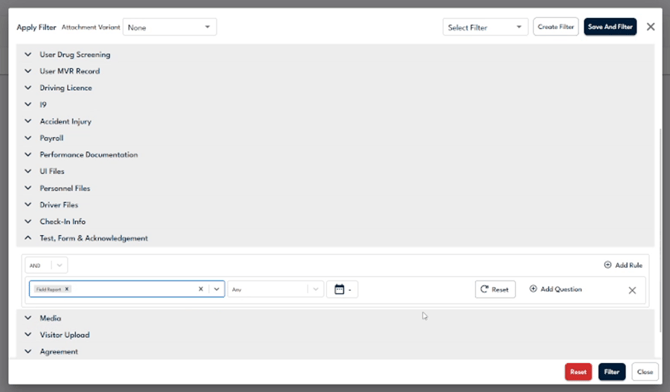
The selected form with its condition, an optional date range, and the Add Question button.
Step 5
Narrow the report to a specific answer. Click Add Question, choose the question you want to filter on, such as Issue Reported?, and set the value that should match. Use Add Rule again with AND or OR if you need more than one condition.
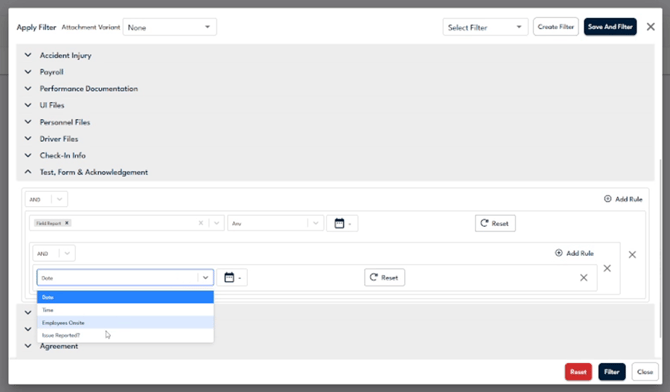
Add Question lets you filter on one question's answer, such as Issue Reported.
Step 6
Click Filter to run the report. To reuse this filter later, click Save And Filter or Create Filter. Saved filters are available from the Select Filter dropdown and the Manage Filters button, and the system confirms with a Filter saved successfully message.
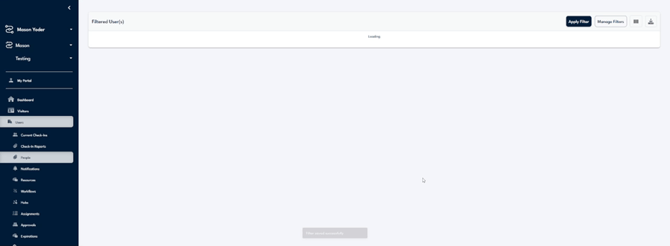
The Filter saved successfully message confirms the report ran and the filter was saved.
Step 7
Review the results in the Filtered User(s) table. Use Search records to jump to a specific person, and use the columns button to choose which columns appear in the table.
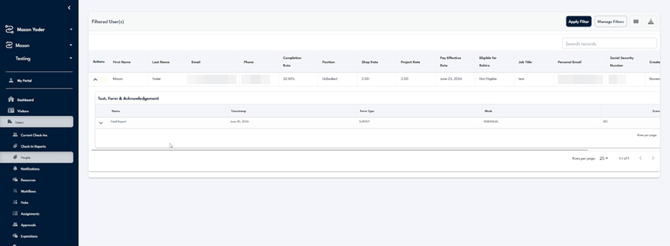
The Filtered User(s) results, with Search records, the columns button, and export in the top right.
Step 8
Drill into a person's submissions and export. Expand a user's row with the Actions arrow to see their Test, Form & Acknowledgement entries, then expand an entry to see the Answer Details, with each question and the answer given. Use the export button in the top right to download the report.
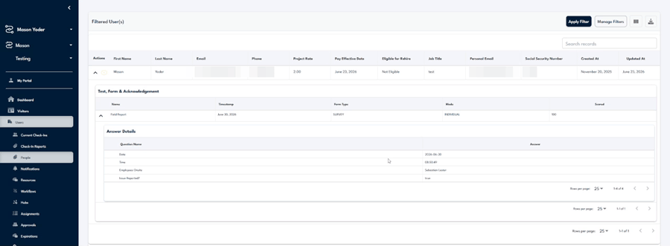
Expanding a row reveals Test, Form & Acknowledgement and the Answer Details for each question.