
Step 1
From the main navigation on the left, select Settings. This is where UnDesked keeps your account and platform controls, including the admin accounts for your team.
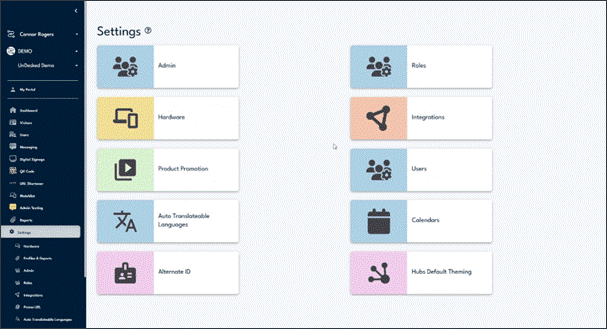
Open Settings from the left navigation menu.
Step 2
On the Settings page, select the Admin card. It opens the list of admin accounts that can sign in and manage your location.
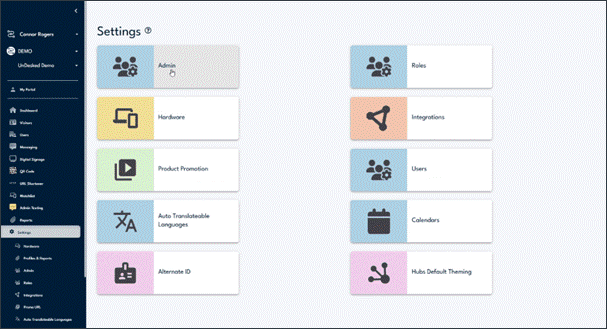
Select the Admin card to open your list of admins.
Step 3
The Admins page shows one row for each person. Find the team member whose password you want to reset. If the list is long, type their name in the Search by Name box at the top to filter it.
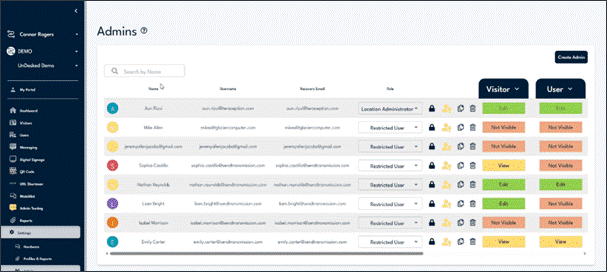
Each row on the Admins page is one admin account.
Step 4
In that person’s row, look to the action icons on the right and select the lock icon. Resting your pointer on it shows the Reset password label, so you know you have the right one.

The lock icon on each row starts a password reset.
Step 5
A Reset Password window opens and asks you to confirm. It shows the email address the reset link will be sent to. Check that the address is correct, then select Yes.
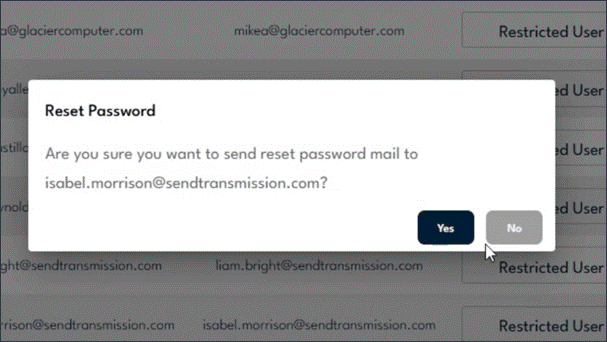
Confirm the email address, then select Yes.
Step 6
UnDesked sends the link and shows the message “Reset password mail has been successfully sent.” The team member can open that email and follow the link to choose a new password.
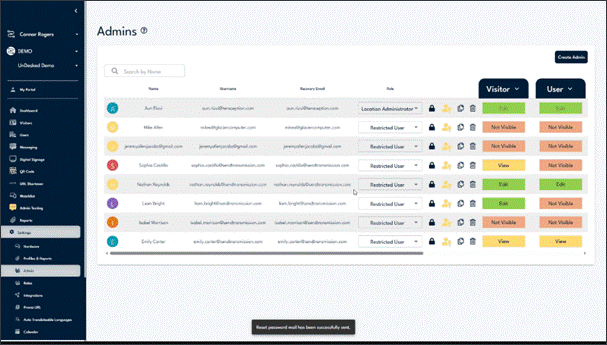
A confirmation shows the reset email is on its way.