
Step 1
In the left navigation open Resources, find the orange Tests section, and click Add New.
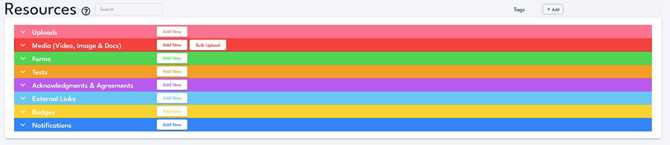
The Resources page groups everything into color-coded sections. Click Add New on the orange Tests bar.
Step 2
In the Summary window, type a clear name in the Name field, such as Blade Change Test. Type stays set to Test on its own.

Type a name that ties the test to the training it follows.
Step 3
Set the options: Re-Serve Period (0 days serves it every time), Mode (Individual or Group), Retry Period (a wait before a retake so users can review), Test Pass Percentage (the score you require), and the Failure Message.
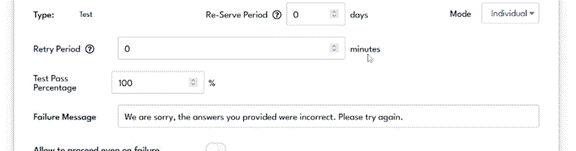
Set the Re-Serve Period, Mode, Retry Period, Test Pass Percentage, and Failure Message in this row.
Step 4
Turn on Allow to proceed even on failure if users may continue the workflow without passing. Leave it off to require a passing score.

The Allow to proceed even on failure toggle sits just below the Failure Message.
Step 5
Click Add Question. Type the question, add each answer with Add Item, and mark the right ones with the Correct toggle. Add true or false questions the same way, then click Save Changes.
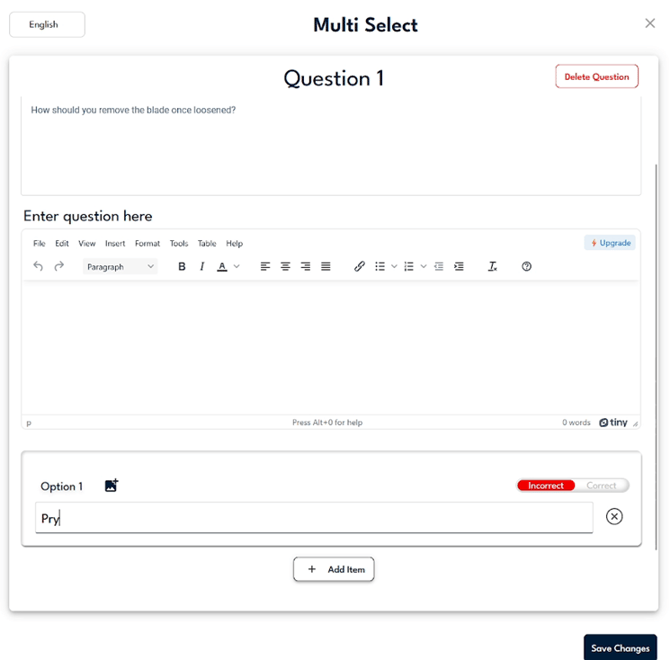
Fill in each option and use the Incorrect or Correct toggle to mark the right answers.
Step 6
From the test's row, click Add To, then Add to Workflow(s), pick the workflow that holds your training video, and click Save.
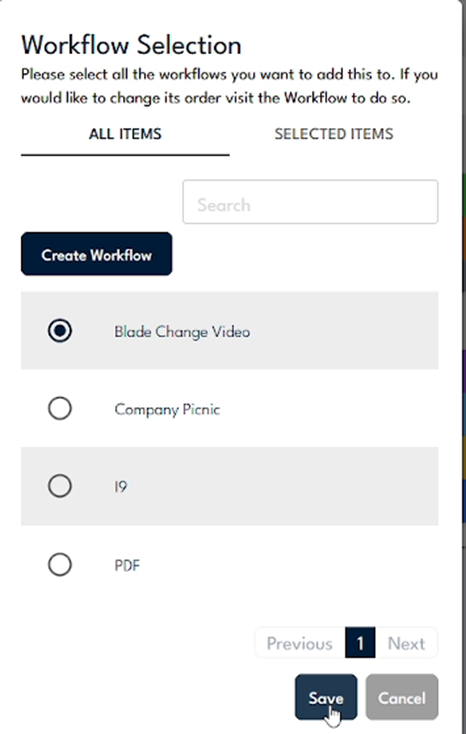
In the Workflow Selection window, choose the workflow with your training video, then click Save.
Step 7
Preview the workflow. The training plays at the top with the test below, so the user can review the material, answer, and click Complete Workflow.
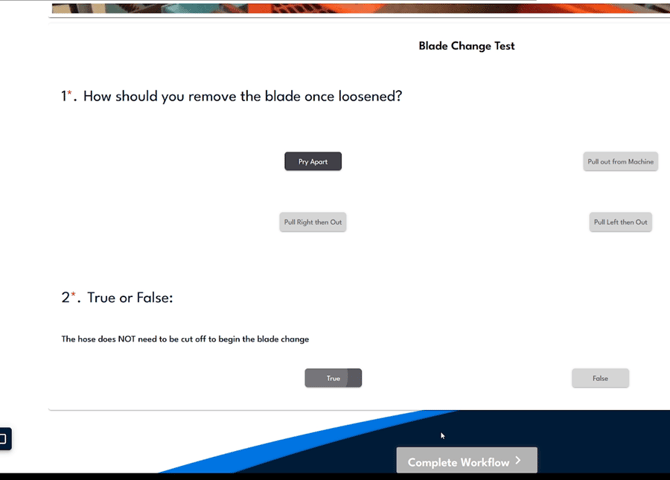
The training sits above the test, so users can scroll up to review before answering.