
Step 1
Open the Trainings tab and click Create New. From the left navigation go to Users, then Trainings. The Trainings page lists every training with Completion, Progress, Trained, and In Training. Click Create New to start one.
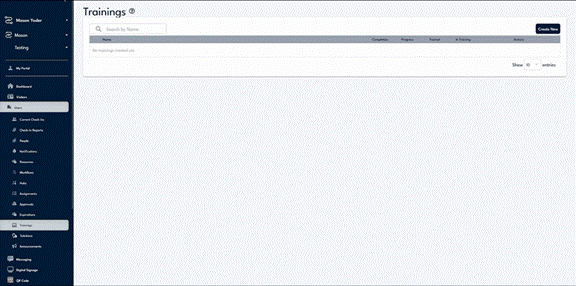
The Trainings tab lists every training with Completion, Progress, Trained, and In Training, plus Create New.
Step 2
Name the training. It appears as a row with actions to Add New, Assign, edit, and delete. Its Completion starts at 0% until people are assigned and begin.
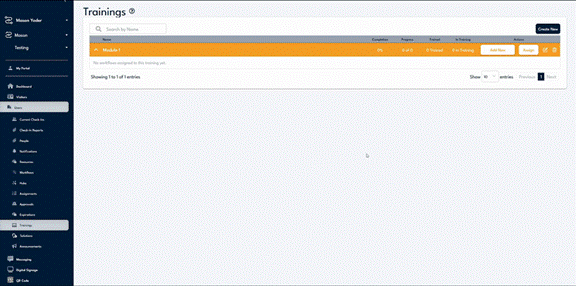
A new training appears as a row with Add New, Assign, edit, and delete actions.
Step 3
Add a section. Click Add New on the training to add a section. Each section works like a workflow, with its own Resources, Assignments, and Settings panels, an Active toggle, History, a Generate button for a QR code, and its own Assign button.

A training holds Sections; each section works like a workflow with Resources, Assignments, and Settings.
Step 4
Add training content. In the section's Resources panel, click Add New to open the Resources picker, then use Add To to add work instructions, videos, and documents (Media), plus Forms and Acknowledgments. Turn on Collect Check-In Info to track who completes it.
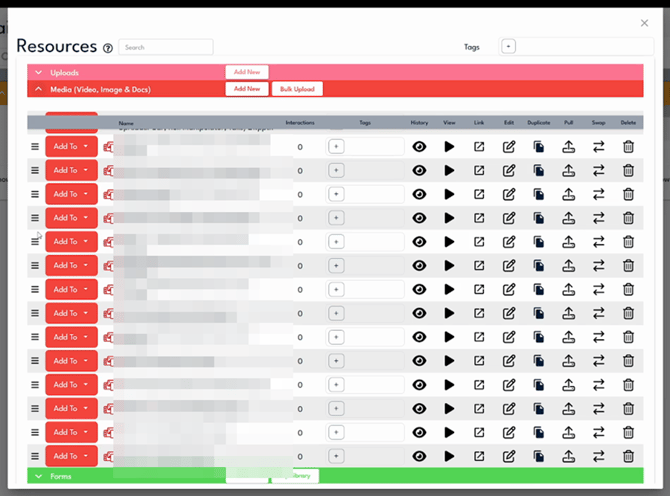
Use Add To in the Resources picker to add work instructions, videos, forms, and more to a section.
Step 5
Add a quiz. Add a Test to check comprehension. Set the Name, Re-Serve Period, Mode, Retry Period, and Test Pass Percentage, write a Failure Message, choose whether to Allow to proceed even on failure, then use Add Question to build the quiz.
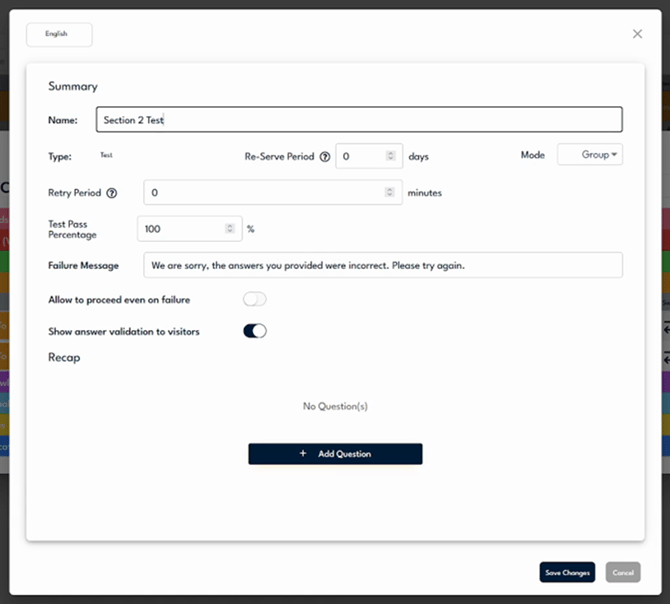
A Test sets the pass percentage, retry period, failure message, and questions.
Step 6
Configure the section. Open Settings to set the Workflow Name, turn on Enable Page Mode, and adjust Check-In Settings such as Allow Registration, Multi-Person Check-In, and Require ID Scan. Add Tags and set Auto Translatable Languages so the content reaches workers in their own language.
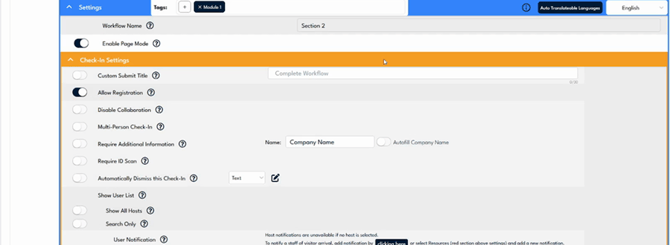
Section Settings include Enable Page Mode, Check-In Settings, Tags, and Auto Translatable Languages.
Step 7
Assign the training. Click Assign to open the assignment options: Category, Assigned To and Assigned For (Individual Staff or Group), Assign Now or Later, a Relative or Fixed Due Date, Reminders, and Email and Text notifications. Use Generate on a section to post a QR code for kiosk or mobile access.
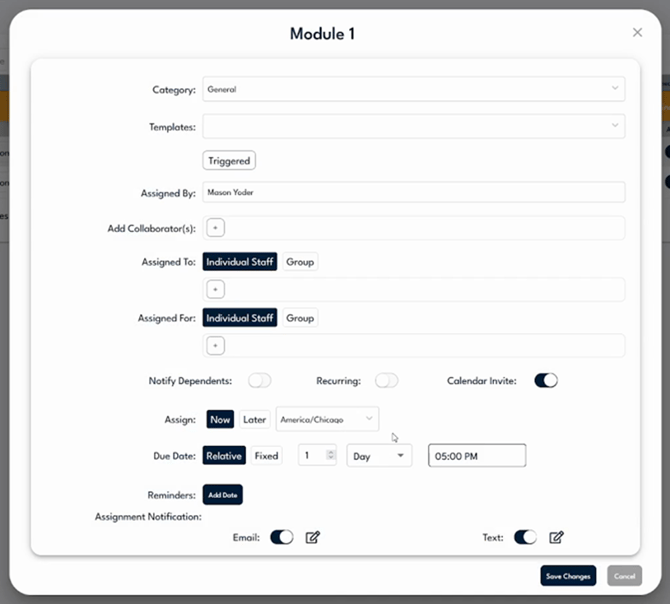
Assign a training with Category, Assigned To and For, schedule, due date, reminders, and notifications.
Step 8
Track progress. Back on the Trainings list, Completion, Progress (x of y), Trained, and In Training update as people work through the training, so you can see adoption at a glance. These figures are interactive.

Completion, Progress, Trained, and In Training update as people finish the training.
Step 9
See who completed what. Click the Completion or Progress figure on a training to open Training Progress Details, a per-person breakdown showing User Name, Workflow Name, Resource Name, Status, and Date.
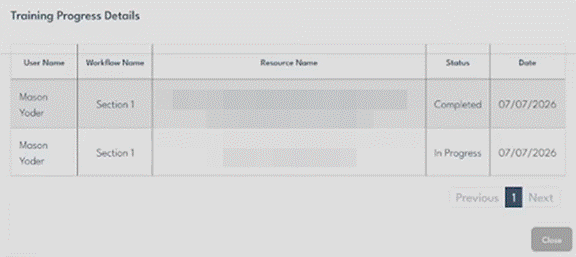
Clicking a training's Completion or Progress opens Training Progress Details, a per-person breakdown.